Create an event, step by step
Click New Event to open the wizard. It has five steps, and nothing is created until you confirm on the last one, so it's safe to click through and see what a plan includes before committing.
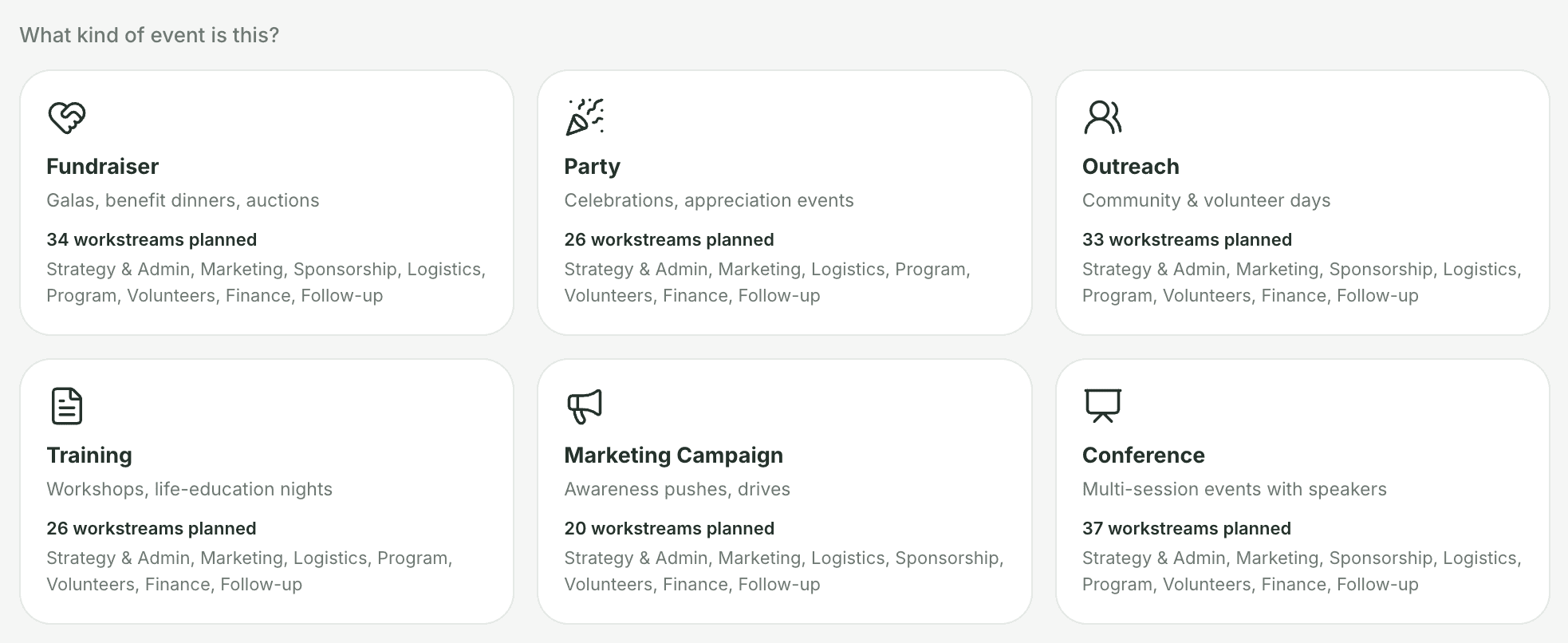
Step 1 — Type
Step 2 — Details
Event name, date, expected guest count and estimated budget. Below that is the Event Options card, where you turn on RSVP tracking, ticket sales and the sponsorship pipeline, plus any extra options a custom template offers. The same card is on the event's Settings page later, so nothing here is final.
Step 3 — Plan
First, choose how much detail you want: Simple (everything this kind of event needs and nothing else), Standard (the default, and right for most events) or Full (a master-plan level of detail). Each shows how many workstreams and roughly how many tasks it plans.
Below that is your plan: every workstream it includes, grouped by area, with its first few tasks. Remove anything this event doesn't need, or add extras such as Auction, Childcare or Raffle from the Anything else? row. A few core workstreams, such as Event Definition, Budget and Thank-yous & Acknowledgment, are always included and marked Included. Your workstreams also set up the Budget tab with a fundraising goal and empty budget lines, so you start from the shape of your budget, not a blank page.

Step 4 — Team
Choose who's on this event, and how the workload tie-break counts open tasks (see how assignment works). Under Bucket ownership, keep your configured default owners or customize them for this event only. Owners and admins can also save their picks as the new default.
Step 5 — Review
A preview of every task and bucket about to be created, with due dates worked out from your event date. If the event is sooner than this kind of event normally needs, a warning offers to compress the dates to fit the time you have. It's on by default, so early tasks don't start out overdue.
One click builds everything. Create Event builds every bucket, task and budget line, and assigns each task to the right person automatically. Until you click it, you can go back and change any step.