How task assignment picks an owner
Every task belongs to a group — Marketing, Logistics, Finances — and every group is also a skill. When a task is created, the app hands it to whoever on the event has that skill. Here's the whole rule, and what to do when it picks the wrong person.
The rule, in order
The same rule runs again later. When you add a workstream or switch on a template option after the event exists, its new tasks are assigned exactly as if they'd been there from the start. Imported spreadsheets are the exception: they use the names in their Assigned To column.
When it picks the wrong person
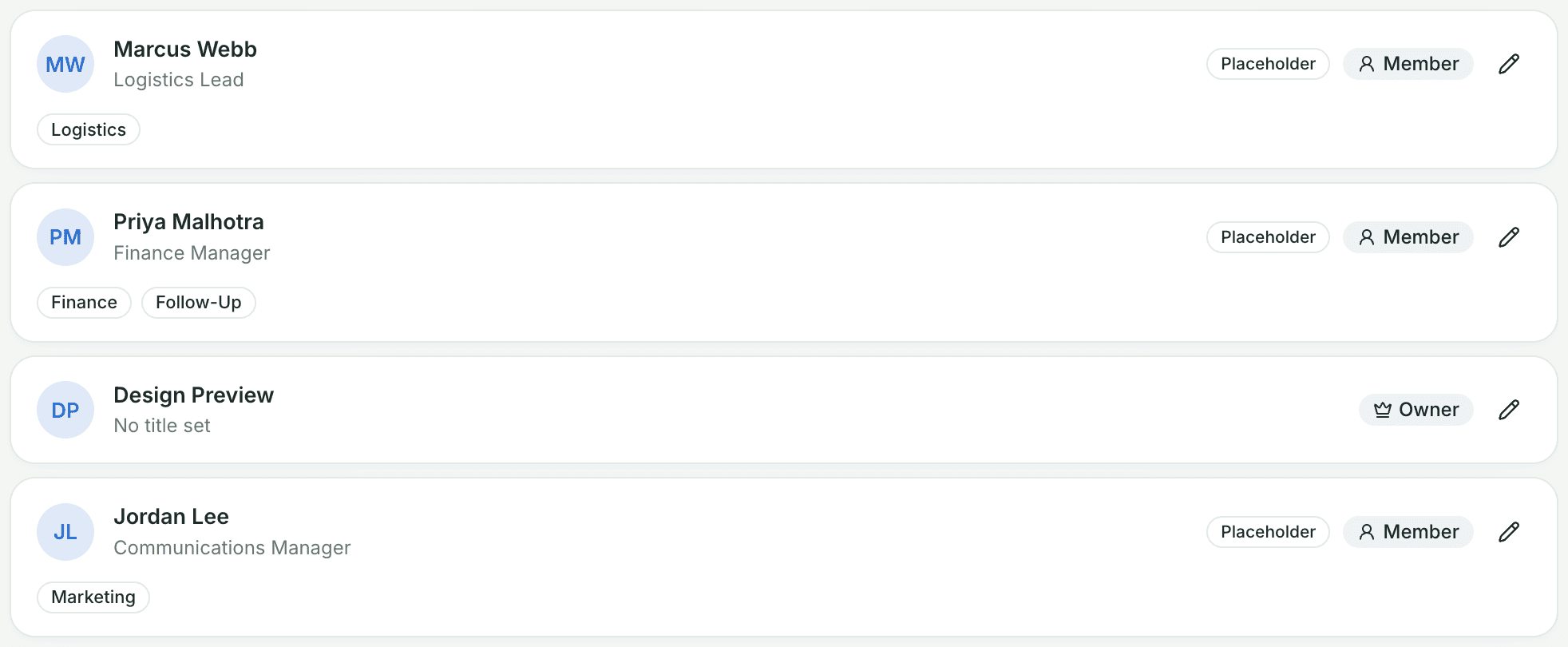
Nine times out of ten it means nobody on that event has the matching skill, so everything fell through to step 3 or 4. Open the Team page, find the right person, and add the skill. Skills are picked from your workspace's bucket list. A skill only affects tasks created from then on, so reassign any tasks that already landed on the wrong person.
Reassigning by hand
Skills fix the pattern going forward. To fix one task right now, an owner or admin opens its detail panel (the arrow at the end of its row) and changes the primary owner. This works no matter what the skill rule would have picked, and it doesn't change how the next task in that bucket gets assigned. Bulk edit reassigns many tasks at once.
Secondary owners
Every task can also have a secondary owner, a backup named on the task without taking over responsibility. It's filled in from the bucket's default secondary owner in Settings → Task buckets, when one is set, and an owner or admin can change it from the same detail panel.